See the shape of the work.
Canopy shows a Jira project as one tree: epics, stories, tasks and tests, joined the way the work breaks down. Reshape it from the keyboard. Every keystroke is a real Jira change.
The real app on a demo project, filmed without cuts. Keys appear as they were pressed.
Jira holds the structure. Canopy shows it to you.
Every epic, story and task in Jira already belongs to something. Lists and timelines can't draw that. A tree can, and it's the picture a lead already has in mind when planning.
A backlog rows
Shows what comes next. It can't show what belongs to what, so the plan lives in someone's head.
A timeline dates
Shows when things happen. How the work breaks down, and what's still missing from it, stays hidden.
Canopy the shape
Every item where it belongs, with its progress, owner and blockers on the card, and every level summed up the one above.
Break work down as fast as you can type.
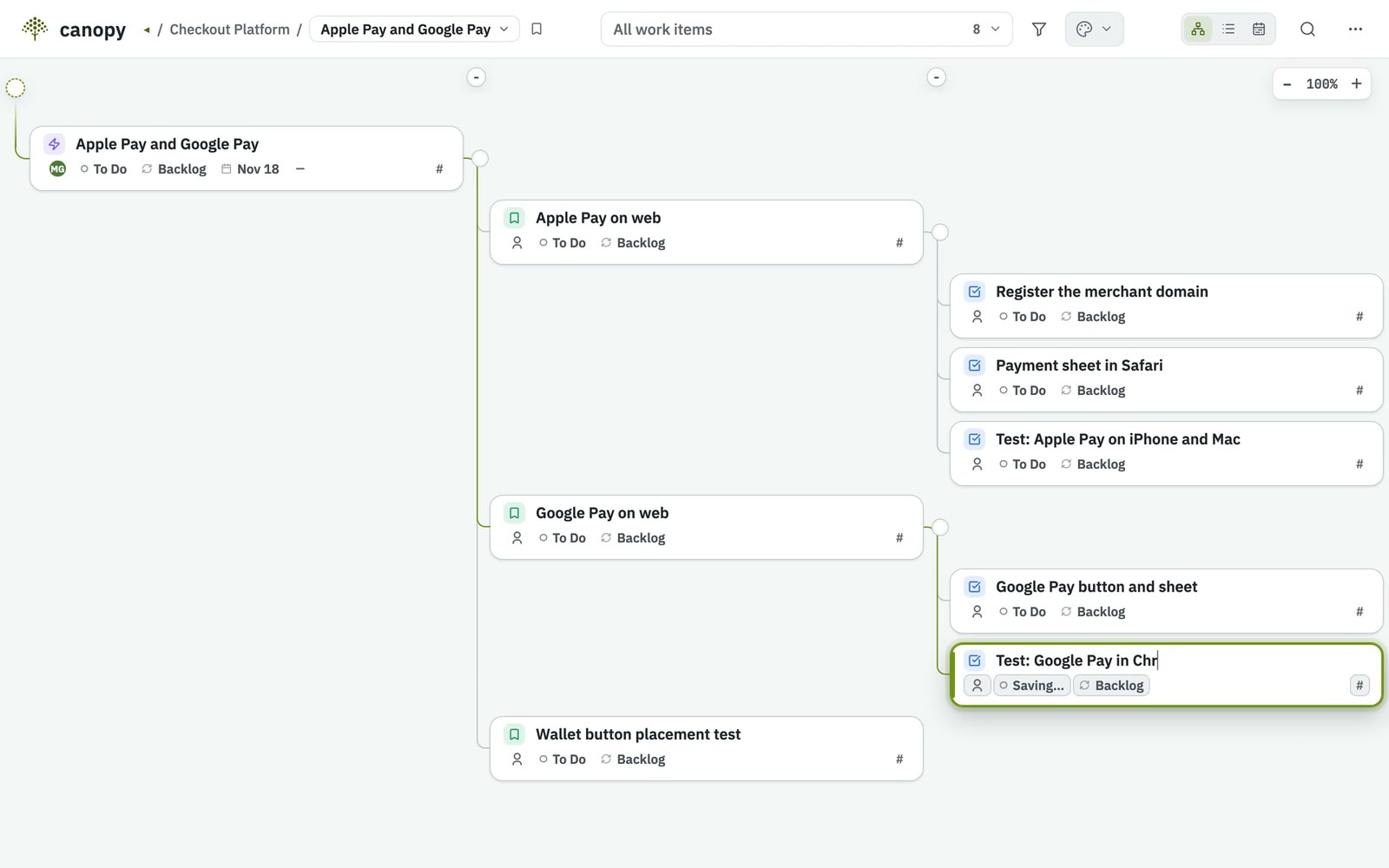
Tab adds a child under the selected card. Enter adds a sibling. Type the title and keep going. The screen updates at once and Canopy saves to Jira in the background, with your own permissions.
Progress rolls up every branch.
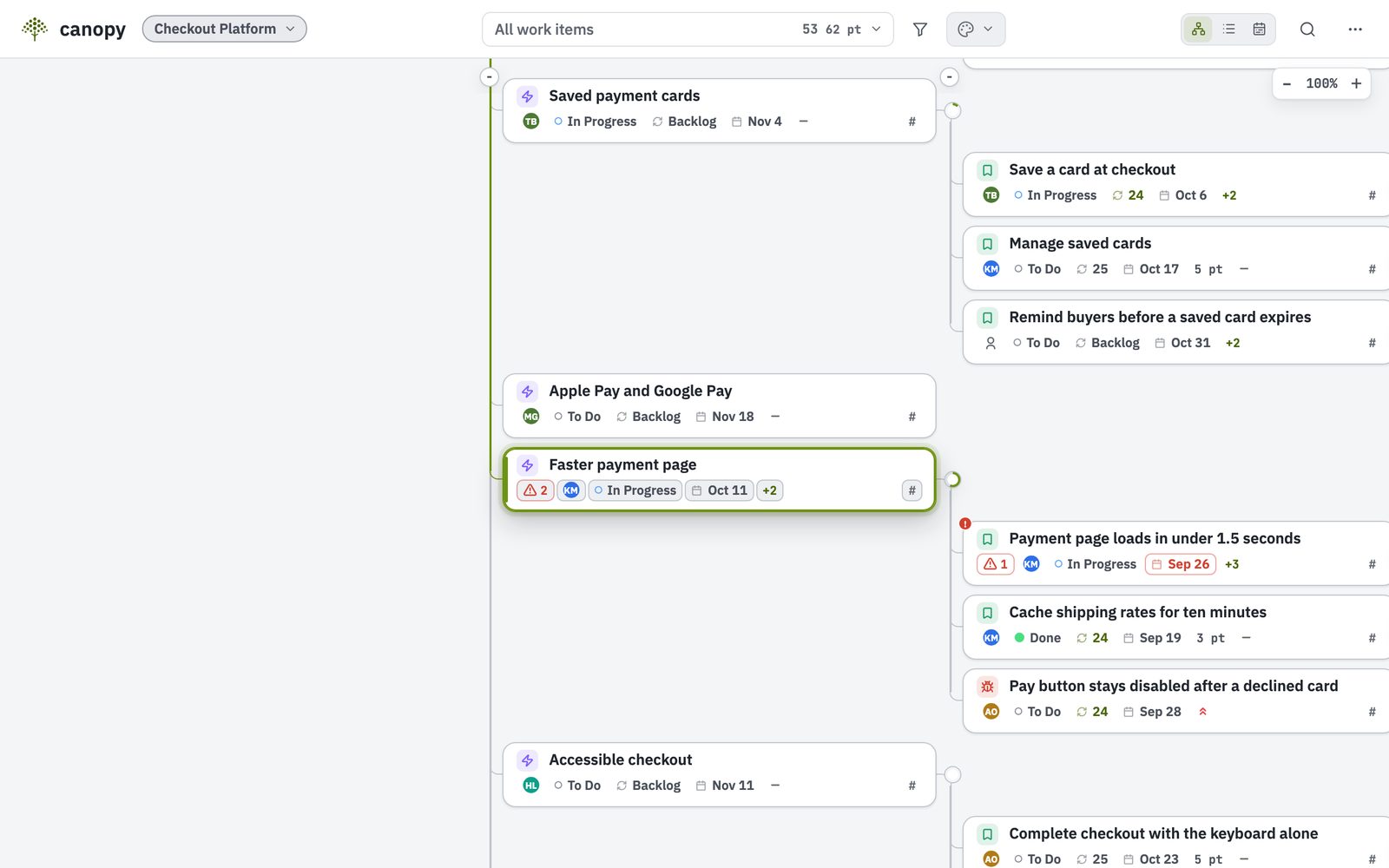
Every branch shows how much of the work beneath it is done, its story points, how many items are overdue and when the next one is due. Blocked work carries a badge wherever it sits. You can read the state of a branch without opening it.
Find the part that matters.
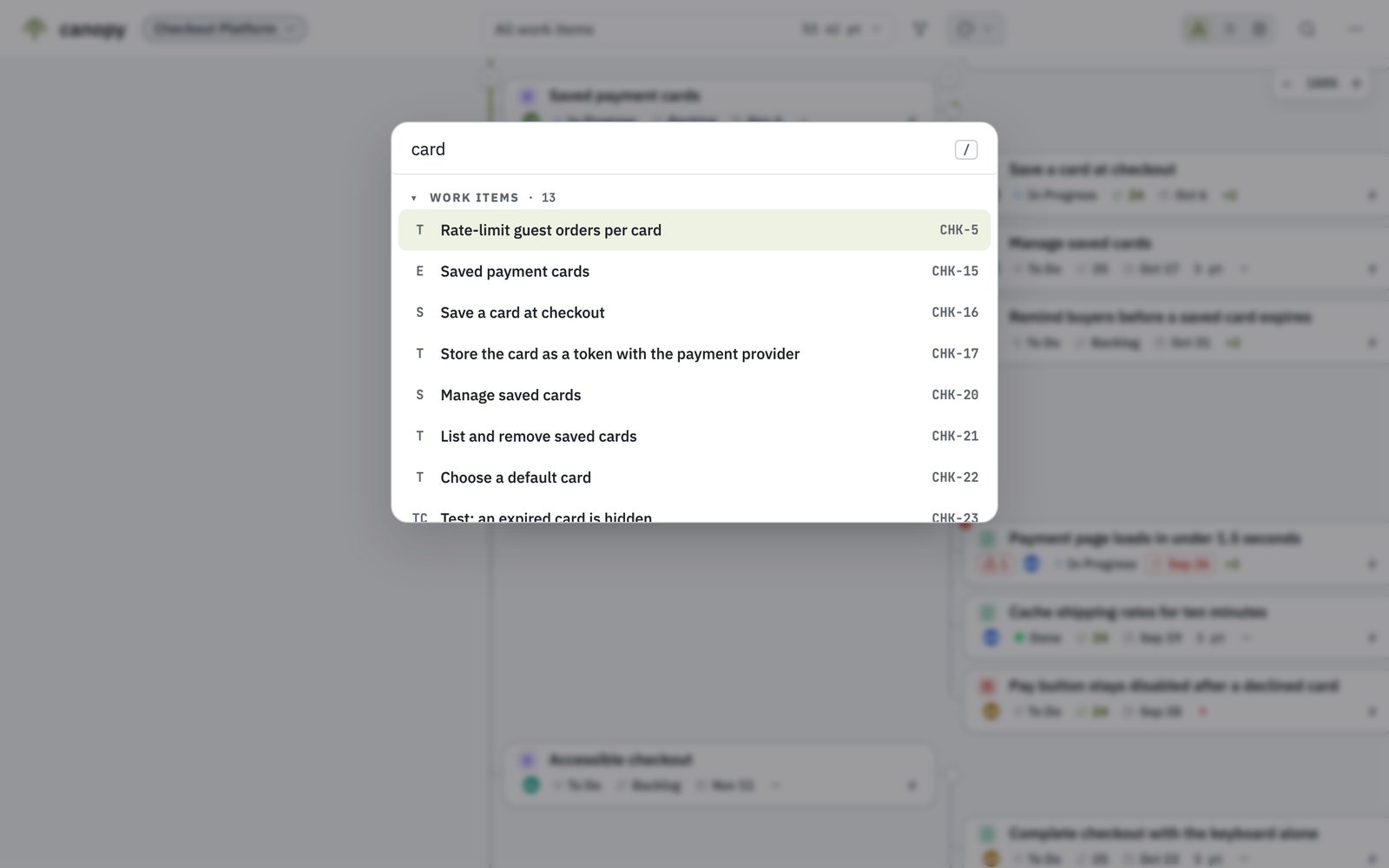
Press / to find any work item. Filter by person, status or sprint and save the result as a View, for yourself or the whole project. H hides everything else. Press Z to focus on one branch, save it, and copy its link for the team. L switches between Map, Outline and Timeline.
Your hands stay on the keys.
Keyboard shortcuts cover the main planning tasks, and ? shows them all inside the app. These are the ones people learn on the first day.
Add a child under the selected card.
Add a sibling below it.
Find any work item and jump to it.
Show that many levels of the tree.
Switch layout: Map, Outline, Timeline.
Focus on one branch. ⇧Z steps back out.
Light or dark. It works on this site too.
Undo, up to thirty steps back.
Safe to say yes to.
Three facts your Jira admin will ask about before installing anything. We put them first.
Runs on Atlassian
Canopy runs on Atlassian Forge, with no Canopy server. We can read its app log and usage counters, which Atlassian hosts; the privacy policy says what they contain.
Uninstall and keep your plan
The tree is stored in Jira's own issue links and properties. Remove Canopy and every work item and every parent link stays exactly where it is. Only Canopy's own saved Views, Branches, palettes, templates and baselines become unavailable when it is removed; the Privacy Policy says how long Atlassian keeps them.
Changes are made as you
Every change to your work items is made as you, with your own Jira permissions. Canopy writes only two small marks as itself: a note on the project that it uses Canopy's hierarchy, and a regular removal of closed accounts from its archive marks.
The narrated tour.
A demo project from the first look to a shared link, with every key on screen. Pick a chapter to jump straight to it.
Read the narration
This is Canopy. Your Jira project, as one tree you can reshape from the keyboard.
See the whole project. Every epic, story, task and test sits where it belongs, joined the way the work breaks down. Press a number to show that many levels, and move around with the arrow keys.
Plan at typing speed. Press Z to focus on one epic. Tab adds a child, Enter adds a sibling. Just keep typing. In Jira, each card is a real work item, created with your own permissions. Option and the arrow keys reorder cards, or move them to a new parent.
Owners, status and progress. A assigns. S moves the work through its workflow. Every branch rolls up: done out of total, story points, overdue work, and the next due date. Late and blocked work is marked wherever it sits.
Save a branch, share the link. Focus on any branch and save it, for yourself or for the whole team. Copy its link and post it where your team works. Anyone who opens it lands right in that branch.
Find, filter, hide. Slash finds any work item, and jumps straight to it. Filter by person, status or sprint. Then press H to hide everything else, and the tree closes up around what's left. Command S saves it as a View.
Colour the plan. Colour palettes paint the cards by a rule: by status, by priority, or by what's overdue. Anyone on the project can edit the team's palettes.
Three ways to read it. L switches layout. The outline is the same plan as a table you can edit. The timeline shows dates as bars and milestones. Drag one to reschedule. And the map is the tree.
Check the plan. The plan gaps report lists what your plan is missing: owners, estimates, dates, and empty epics.
Every change you make in Canopy is a real Jira change. It runs on Atlassian, with no Canopy server. Find out more at bloomlogic.co.uk.
Is Canopy for you?
It does one thing. Here is who that suits, and who it doesn't.
A good fit if you
- plan by breaking work down, from epics to stories to tasks and tests
- want progress, owners and blockers visible where the plan is
- would rather use the keyboard than drag things around
- work in Jira Cloud on a laptop or desktop
Look elsewhere if you
- need Gantt charts with resource levelling or capacity planning
- run Jira Data Center or Server; Canopy is for Jira Cloud only
- plan mostly on a phone or tablet
- want one board across many projects at once; Canopy works one project at a time
Before you ask
Does Canopy change our Jira data?
Your edits change Jira, made as the person editing, and show there straight away. One change happens without an edit: once a project has adopted Canopy's hierarchy, opening Canopy files a work item newly created in Jira under its Jira parent, with a Canopy link made with your permissions. Apart from that, just looking changes nothing. Canopy writes only two small marks as itself: the project's choice to use Canopy's hierarchy, and, regularly, removing closed accounts from its archive marks.
⌘Z undoes up to thirty changes, including a card you just created. Deleting can't be undone, and a deleted card takes its whole Canopy branch with it, every card beneath it. That goes further than Jira, where a story under a deleted epic survives, so Canopy always asks first and says what goes.
What does our Jira admin need to do?
Install Canopy from the Atlassian Marketplace, which takes about a minute. To nest work freely, a site admin also adds one issue link type, named Canopy Hierarchy. Canopy explains how on first open and can copy a note for the admin.
Until then, Canopy shows Jira's own hierarchy, and you can already filter, edit fields and reorder. The setup, step by step.
What happens if we uninstall it?
Your work items and every parent-child link stay in Jira, because that is where Canopy keeps them. Canopy's own saved Views, Branches, palettes, templates and baselines become unavailable when it is removed; the Privacy Policy says how long Atlassian keeps them.
How big a project can it handle?
Projects of up to 20,000 work items open whole. For bigger ones, Canopy asks first: load everything, with an estimate of how long it will take, or open one complete branch.
On a fast laptop, a real project of 12,514 work items opened in 6.3 seconds, and folding, editing and filtering each took under 10 milliseconds.
Does it work with team-managed projects?
Yes. Company-managed and team-managed projects both work. Sprint controls appear when the project has a Scrum board.
Will our Jira automation rules still work?
Yes. An edit made in Canopy is an ordinary Jira change, so it sets off your rules exactly as the same edit made in Jira would.
Rules built on Jira's own parents, like "close the epic when its stories are done", keep following those parents. Canopy never changes them, so those rules don't see a card you move under a new parent in Canopy.
Is any of our data sent anywhere?
Canopy has no server of its own and makes no outside connections. It runs on Atlassian's infrastructure, and its own settings are kept in Atlassian's app storage for your site. We can read its app log and usage counters, which Atlassian hosts; the log carries account IDs, work item keys and some field values, never titles or descriptions. The privacy policy has the detail.

Open your project as a tree.
$10 a month for a Jira site of up to ten users, billed through Atlassian. Coming soon to the Atlassian Marketplace.